


Analytical Methods and Open Spectral (AMOS) Database User Guide
The Analytical Methods and Open Spectral (AMOS) Database is a web-based application and underlying database developed by the US Environmental Protection Agency (EPA) to provide access to documents associated with different analytical methods (e.g., regulatory, standard operating procedures, lab manuals, and peer-reviewed publications), a broad database of spectral data associated with mass spectrometry, and supplemental documents of various kinds.
This guide offers step-by-step instructions on accessing AMOS’s data and features. For additional information or assistance, please contact NAM@epa.gov.
On this page:
Data Model
The core of AMOS’s data model is associating individual records in the database with substances that they focus on, with additional substance- and record-level metadata available for purposes such as filtering or grouping results of searches.
Substance-level metadata consists of ways to categorize substances or links to external sources that may have more specialized information. Record-level metadata varies across different types of records: some information is common to most or all records, like links to the source, while other information is particular to specific record categories. The completeness of a record’s metadata varies depending on the information provided directly by the records (such as instrument parameters in an analytical method) or additional context from the source (such as descriptions of a spectral library on the website where it can be downloaded).
The records stored in AMOS consist of five categories:
Analytical methods: Descriptions of full analytical procedures for analyzing one or more related substances in a given context. These include information like sample preparation, analytical methodologies, and the environment that the sample was taken from.
Spectra: Spectra of various kinds, some of which are stored in the database and some of which are externally linked to. Spectra stored directly in the database are predominantly mass spectra, with small numbers of NMR and IR data. Additionally, some spectra are stored as PDFs rather than the actual data format.
Product declarations: Documents supplied by manufacturers of products that characterize the materials they manufacture.
Safety data sheets: Health and safety information for one or a few related substances.
Fact sheets: A broad category of supplemental documents that do not conform to the above types. These can range from layman-level information sheets on a substance to monographs detailing the results of an analysis.
Up-to-date counts of the records in the database can be seen on the "About this App" page.
The majority of records in AMOS are open access, but not all. Some spectra are externally linked because they are behind login prompts on their source but are otherwise accessible by anyone. Methods, non-open access publications and other documents that cannot be stored in the database will have dummy documents that summarize the document and link to the source; these records are often from journals that require paid subscriptions, however, so accessing the originals is not always an option.
Because the data are amalgamated from a variety of sources, data quality varies a great deal within the database. Efforts are made to curate the data as well as is reasonable to do so, but the sheer quantity of data and the sometimes-low-quality identifiers or metadata that come with it mean that it is not plausible to perfectly curate all data.
Functional Use Classes
In addition to metadata pulled from external sources, AMOS incorporates a custom, curated ontology of functional use classes that detail common uses of some substances. The classes are primarily used for filtering methods, fact sheets, and other documents. See the “Functional Use Visualization” section for information on an interactive visualization of this ontology in AMOS.
For information on the ontology, see the publication “Curating and Visualizing the Analytical Methods and the Open Spectral Database’s Chemical Functional Use Taxonomy”.
Home Page
The front page of the application is the primary navigation entry point to the rest of the application.
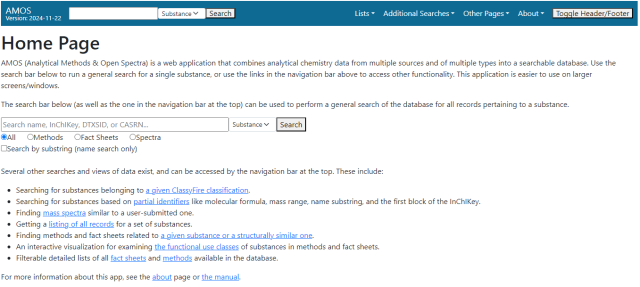
The main functionality on this page is a search box which allows for general searches of the data in the database. Searches can look for either a specific substance, a specific record, or text in any of the document types. To execute the search, enter a search term, use the dropdown next to the search bar to select the type of search, and either click the “Search” button or hit the Enter key while the cursor is in the entry box to execute a search. See the “Primary Searches” section for information on the search options available here.
For substance searches, the search term is treated as an exact identifier unless the “Search by substring” checkbox is selected. InChIKeys are a partial exception to this – see the “General Substance Search” section for details.
There are two modifiers below the search bar which apply only to the substance search:
The radio buttons below the search bar will let you preselect which type of records you want to see when the search results load.
The “Search by substring” option will redirect you to a page listing all substances with a name (either a preferred name or a known synonym) containing the searched term as a substring. See the “Formula, Mass, and Partial Identifier Search” section for details.
These modifiers are not available if you run your search using the search field in the top navigation bar.
Navigation Bar
The bar on the top of the AMOS page is the primary method of navigating through the application. It is present on all pages.
The left side of the bar displays the name (hyperlinked to the home page) and the version of the application. Next to it is a search box which runs the same searches as the main page's search box, with the caveat that the additional options available on the front page are not available here.
On the right side of the bar is a list of links and dropdowns in the following order. All pages will be described more thoroughly later in the manual.
Lists: Pages that list, filter, and search specific categories of documents in the database. There are currently lists for five categories: a list of spectra from a project called Analytical QC, fact sheets, methods, product declarations, and safety data sheets.
Additional Searches: A dropdown menu listing other, more specialized searches of data in the database. There are currently five searches available: a batch search for information on multiple substances' records, a classification substance search using ClassyFire classifications, a search for comparing a user mass spectrum against those in the database, a partial identifier search that lists substances given an identifier that can match multiple substances, and a page for finding methods that contain either a compound of interest or a highly similar compound.
Other Pages: This is a catch-all for pages that don’t cleanly fit in the other categories. There are three pages: a visualization of the functional use class ontology, a page for doing comparisons of spectra, and a visualization of soil types with links to fact sheets and methods.
About: A dropdown menu with links to the AMOS about page, support contact information, descriptions of the major data sources used in AMOS, a list of related EPA-built applications, release notes for updates to AMOS, and links to external related media.
On the right edge, there is a button labeled "Toggle Header/Footer", which toggles the visibility of the EPA website header and footer elements.
Primary Searches
The searches available from the front page and navigation bar are the primary search methods in AMOS. These are searches for records that match a single substance, a specific record by its database ID, and a search across all PDF documents for text.
General Substance Search
This is the default search type among the primary searches. It looks for all records that contain a given substance, identified either by DTXSID, CASRN, InChIKey, or substance name.
The search results page for a single substance is split into two. On the left side, there will be a short list of information on the searched substance on top and the list of records containing that substance in a table below. The right side will display a record when the row in the table is selected.

The substance description includes a few common identifiers, physical information about the substance, an image of the structure (if available), and the top four levels of the substance's ClassyFire classification. Two additional collapsible elements can be present: one listing additional sources that could have useful information beyond AMOS’s focus, and a list of functional use classes recognized by AMOS’s ontology. a collapsible element will appear listing those. Icons to the left of the preferred name, DTXSID, CASRN, and InChIKey are buttons to copy the corresponding field to your clipboard.
The database records are shown in a table below the substance description. These records are filterable by any methodologies they use, the source of the record (including a hyperlink to the original source if possible), or some information about the record. The type of records being shown can be toggled using the tab bar just above the table; selecting a record type in the selector will hide and show different columns depending on what is applicable or relevant for each data type.
The contents of the table can be filtered using the checkboxes below the substance info:
Show single-point Spectra: Toggles the display of mass spectra that only contain one point.
Show MS-Ready methods: Adds methods that contain variations of the searched substance. MS-Ready substances are ones that are variations on the same basic substance, where those variations may be salts, isotopes, or stereoisomers, among other things. These are determined by matches to the first block of the InChIKey. The first time this is selected, an additional call is made for those methods, so there may be a slight delay in them appearing in the results.
Show external links: will show links to spectra that are directly stored in AMOS but are accessible to users of the respective sources. This is normally unchecked by default, but if the only records for a substance are from external links, it will be checked when the results are displayed.
To view an individual record, click the row in the table.
Mass/NMR/IR Spectrum Viewer

Spectra that are stored directly in the database (i.e., not as external links or as PDFs) will appear in an interactable plot. Hovering the cursor over individual peaks (for mass spectra) or points on the curve (for NMR & IR spectra) will highlight the nearest individual point and show the coordinates for it in the top-right of the plot.
Below the plots is metadata regarding the quality of the spectrum or how it was collected. Underneath this information are buttons that allow for viewing a more complete set of metadata (if available) or for viewing the spectrum as a table and downloading it.
Metadata quantity and quality vary a great deal across mass spectra, as different sources have different standards for what they include. Spectrum metadata in general is heavily focused on the instrumentation and other aspects of the setup used to collect the spectrum. NMR and IR spectra currently retain smaller sets of metadata than mass spectra.
PDF Viewer
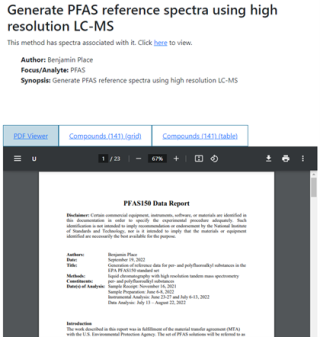
When selecting a record that is a PDF document – fact sheets, methods, product declarations, safety data sheets, or spectrum PDFs – the right side of the page will list the name of the document, some metadata (if available), and a tabbed viewer that allows the user to go between the document itself and lists of the substances that appear in that document in either a table or a grid layout.
If the document is open-access, then it will be displayed in the PDF viewer. If not, then a dummy document containing an abstract and links to where to find it will be shown instead.
If a method has spectra associated with it, a note will appear in the description on top which will include a link to a page where the method and its associated spectra can be viewed side-by-side.
Record ID Search
When searching for a record by its database ID, if there is an exact ID match, you will be redirected to a page displaying the record. These pages display the same information as the half-page viewers in the general substance search but spread out over a page (pages for spectra also include substance information). If no matching record is available, a message stating so will appear.
Database IDs are not shown by most pages. The easiest way to find them is in the results of a batch search (see that section); lists of documents include them as well.
Document Text Search
This will run a search across the text and metadata for all fact sheets, methods, product declarations, and safety data sheets. Documents will be listed on a table on the left side of the page and will be visible on the right side when a row in the table is clicked.
Text searches can be run on a collection of individual words or one or more phrases joined by logical operators. Examples include:
linear alkylbenzene (returns any document containing either of the words ‘linear’ or ‘alkylbenzene’)
"linear alkylbenzene" AND "daphnia magna" (returns any document containing both the phrase ‘linear alkylbenzene’ and the phrase ‘daphnia magna’)
("linear alkylbenzene" OR "daphnia magna") AND "benzene" (returns any document containing the word ‘benzene’ and at least one of the phrases ‘linear alkylbenzene’ and ‘daphnia magna’)
Due to technical limits, searches on general or common text may be limited to 10,000 documents. Making your text queries as specific as possible is strongly recommended.
Additional Searches
AMOS has several additional, more specialized searches that search for records or substances that meet certain parameters.
Batch Search
The batch search takes a list of substances and returns information on all records in the database containing at least one of those substances. Several aspects of the results can be filtered or adjusted using inputs on the page.

When the search is complete, an Excel file will download. This file has two sheets in it – one that lists substance matches to the identifiers and substance-level information, and one that contains information on the individual records. Information on the individual records will always include common information such as database IDs, some substance identifiers, analytical methodologies, sources, and links.
Sets of search options for filtering records and adding additional metadata are:
Record Types: Filters records by data type. The "Analytical QC only" option overrides and locks the other options, as it refers to only a particular subset of spectra.
Methodologies: Filters records by the analytical methodologies present in the record. If 'All' is selected, records not labeled as GC/MS, LC/MS, or NMR -- such as records which lack a methodology or methods focused on immunoassay work -- will be included.
Substance Info: Options for substance-level metadata to include. Options are: whether to include a substance's ClassyFire classification, if available; whether to include counts of references to a substance in external sources; and whether to include the functional use classes for substances.
Record Info: Options for record-level metadata to include. Currently, there are only options for mass spectra -- a rating of spectrum quality, the ionization mode, the number of peaks, and the spectral entropy.
Other: Other options. Currently has two options for choosing whether to include records that are only externally linked and choosing whether a result file should be downloaded even if no records were found in the database for the list of DTXSIDs.
ClassyFire Classification Search
This search looks for substances by the top four levels of their ClassyFire classification.
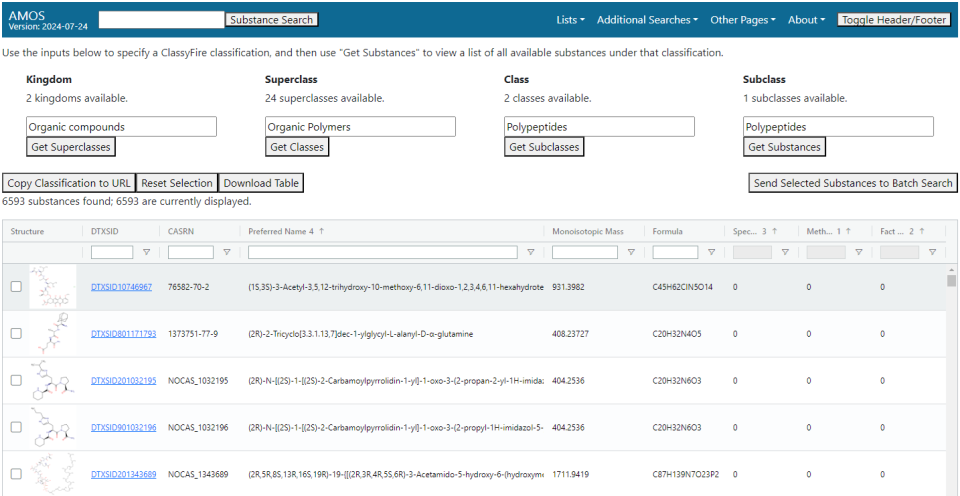
Classification levels are put in one at a time (kingdom, superclass, class, and subclass in that order), with the option of picking the next one available only after the search on the given level is done. Options will pop up in a selectable list when the corresponding text box is selected; you can also search available values can be done by typing in the box. Once all four levels have been selected, the "Get Substances" button can be used to get a list of substances that fit that classification.
Filtering on identifiers and physical characteristics can be done using the fields at the top of each column. The three columns listing the number of spectra, methods, and fact sheets in the database for a substance have a custom filter that allows the viewing of all records, only those with at least one record of that type, or those without any records of that type.
The four buttons below the search bar have the following functionality:
Copy Classification to URL: Copies a link to the page with the current search incorporated as query parameters. The search will rerun when the page is loaded.
Reset Selection: Resets the contents of the search fields. Does not reset search results.
Download Table: Downloads the full contents of the table to an Excel workbook.
Send Selected Substances to Batch Search: Opens a new tab to the batch search, prepopulated with a list of checked substances (using the checkboxes on the left edge of the table's rows). If trying to pass a large number of substances -- hundreds or more -- it may fail to pass all of them due to how some browsers interpret URL query parameters, so it is recommended to not pass more than a few dozen.
Some subclasses may have several thousand substances under them, so searches may be slow.
Formula, Mass, and Partial Identifier Search
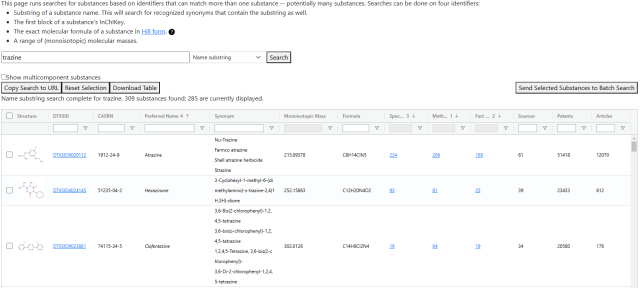
The partial identifier search will find all substances that match certain non-unique identifiers. There are currently six search options: A substring of a substance name, an exact molecular formula, the first block of an InChIKey, a range of monoisotopic masses, a list of DTXSIDs, and a functional use class from AMOS’s ontology.

After a search has been run, several options and buttons are available:
Show multicomponent substances: Shows or hides substances that consist of multiple components.
Show substances with zero metadata: Shows or hides substances with no sources, patents, or articles available.
Copy Search to URL: Copies to clipboard the page URL with the search appended as query parameters. This allows a search to be easily rerun, bookmarked, or shared.
Reset Search Field: Clears the search field. Does not reset the table of search results.
Download Table: Downloads an Excel file containing all rows and columns currently visible in the table.
If substances are checked using the checkboxes on the left edge of the table, Send Selected Substances to Batch Search will open a new tab to the batch search with its field for identifiers prepopulated with the selected substances’ DTXSIDs.
Mass Spectrum Search
The spectrum search lets a user search the database for all spectra corresponding to a mass range and methodology and compare them to a user-supplied spectrum.

To run a search, four pieces of information must be supplied:
A range for the monoisotopic mass. The center of the range is in Daltons while the size of the window can be specified in either Daltons (up to 0.5) or parts per million (up to 25).
A mass window for determining similarity between peaks. The default is 0.05 Da.
An analytical methodology. Currently supports GC/MS and LC/MS (positive and negative LC/MS are not distinguished).
A user-supplied spectrum that is compared against the database spectra. This spectrum should be formatted as a list of m/z-intensity pairs, one pair per line, with the m/z and intensity values separated only by whitespace.
When the search is complete, a table listing all found spectra will appear. Spectra are grouped by substance and sorted by the entropy similarity between the user-supplied spectrum and the database spectrum. The numeric control just above the table will hide spectra that are below a certain similarity, with a minimum value of 0.1.
Selecting a row for an individual spectrum in the table will bring up a simple mirror plot below displaying both spectra, with the user-supplied spectrum in light blue on top and the database spectrum on orange on the bottom. Peaks between the two spectra that fall in the mass window specified in the search will all be colored with a darker blue.
Similar Structure Search
The similar structure search which locates documents containing either a searched substance or a substance that is highly structurally similar to the searched one. The primary purpose is to provide a broad set of possible analytical ideas and techniques for any given substance, especially for substances that have few or no methods available – if similar substances have been analyzed, those analyses can serve as a good starting point, if not a full solution.

To run a search, input a DTXSID, CASRN, InChIKey, or substance name into the search bar at the top of the page. The search will return a list of all known substances with a Tanimoto similarity of at least 0.5 and lists of fact sheets, methods, product declarations, and safety data sheets containing at least one of those substances (including the searched substance). The substance being searched on and the substances returned by the search do have to be recognized by the EPA, but it is not necessary that there are any data records in the database concerning that substance.
The "Filter minimum substance similarity" control will adjust which results are visible in the result table but does not change the underlying search.
List Pages
AMOS has pages that list out documents of a certain category – fact sheets, methods, product declarations, and safety data sheets. These pages include searching and filtering capabilities allowing a user to quickly locate a set of documents of interest.
There are currently two styles of pages. The default pages for fact sheets, methods, and the Analytical QC spectra will load a table containing data for all documents available in the database, which can be filtered and sorted as desired.
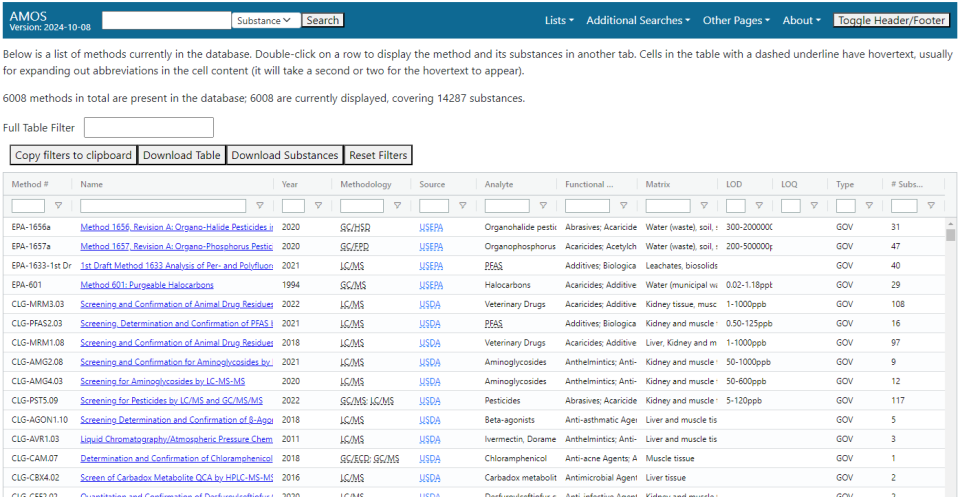
The other style, the default for product declaration and safety data sheet pages, will display several fields for search filters and return a list of documents that match those filters. Pages that list all product declarations and safety data sheets – as with the fact sheets and methods – can be accessed from their respective pages if need be.

Several search/filter fields are common to both styles:
Searching and filtering by the most common metadata like document name and source is possible in all cases.
The fact sheets, product declarations, and safety data sheets can search/filter for records that contain a specified substance. The fields accept names, InChIKeys, CASRNs, or DTXSIDs, and will handle any disambiguation that is found. Only one substance can be used in these fields at a time.
Filtering or sorting by year published and the number of substances is possible in the result tables for all record types except Analytical QC.
Additional fields specific to each record type are available on each page; see the respective pages for more information.
The reason for the different page styles is due to the sizes of the document collections. As of this writing, the database contains around 25,000 fact sheets and 8,000 methods, but well over 200,000 product declarations and safety data sheets each. Loading information for all documents of the latter two categories is possible, but it requires several minutes and may lag the browser.
Other Pages
Data Sources
This is a brief list of some of the more prominent data sources (by number of records in the database).
Functional Use Class Visualization
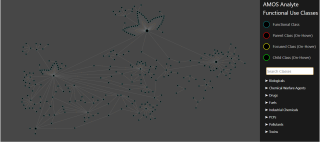
The left side represents the hierarchy of use classes as a directed graph. Individual nodes can be hovered over to get a brief description of the analyte class, as well as highlighting any parent or child classes. The display can be zoomed in and out as needed.
The search field on the right side provides a text search of the analyte classes. Hovering over an entry in the list below it will highlight the corresponding node in the visualization.
Right-clicking on either an individual node or a name under the search results will open an element that lets you see either the methods list or the fact sheets list with the “Functional Classes” filter pre-populated with the value you clicked on.
Mass Spectrum Comparison
The spectrum comparison page is used for comparing a user-supplied spectrum to another user spectrum or some spectra in the database.

In normal operation, the spectrum comparison page will show two input fields. Each one will accept a spectrum in the form of rows of text, with each row consisting of one m/z-intensity pair with the values separated by a single space. Using the buttons below the spectra, one can look at either spectrum individually or both at the same time. Calculations of spectral entropy (for individual spectra) or entropy similarity (for both spectra) will appear below the plot.
A second mode of operation can be enabled by supplying a list of DTXSIDs as a query parameter in the URL. In this instance, the second box will be replaced by a table listing all spectra in the database for all of the supplied DTXSIDs. The functionality of the page is otherwise the same, except that you must select a row in the table to view the database spectrum.
Two controls on the page affect how the mirrored two-spectrum plot is displayed:
A minimum peak height can be set for consideration. Peaks below this threshold are not considered in the entropy similarity calculation and are greyed out in the plot.
The size of the window for peaks to be considered similar can be adjusted. Similar peaks in the plot are colored in a darker blue.

Soil Ternary Plot
This visualization displays the USDA soil texture triangle. Hovering over an area will show composition details in a tooltip next to the plot. Clicking on a region will open a new tab to the method list, filtered to show documents that have that soil type as the matrix.