


Chemical Transformations Database (CheT) User Guide
The Chemical Transformations Database (CheT) is a curated compilation of observed organic chemical transformation pathways reported in scientific journals and regulatory reports. The database captures mapped parent/product linkages and transformation kinetics, along with the data source and a summary of experimental conditions for observed data.
This guide offers step-by-step instructions to help you access CheT. For additional information or assistance, please contact CCTE@epa.gov.
- Navigation | Homepage | Chemical Database | Reaction Database | Search Results | Batch Search | Chemical Page | Reaction Page | Reaction Map Page | About | Submit Comments | Contact Us
Navigation

At the top of any page of the chemical transformations database (CheT) is the navigation banner. From here you can access various parts of the database.

Clicking on the name of the database will return you to the front page of the database.
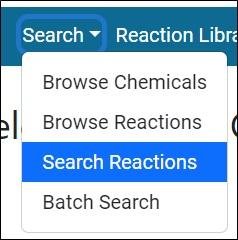
Clicking on the Search dropdown (right) will display a menu with four options.
- Browse Chemicals will take you to the chemical database view.
- Browse Reactions will take you to the reaction database view.
- Search Reactions will take you to the front page, from which you can use the default search tool to search the database.
- Batch Search will take you to the batch search tool, which can be used to search chemicals and reactions using multiple identifiers at once.
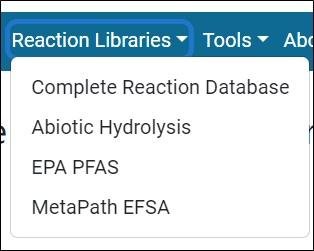
Clicking on the Reaction Libraries dropdown will display a menu with the available reaction libraries in the database.
- Complete Reaction Database will take you to the reaction database view.
- Each other option will take you to a list of reactions from the corresponding library.

If you are an administrator, the Tools dropdown (image right) will allow you to register with the database, log in, and make changes to the database. Regular users can ignore this option.

Clicking on the About dropdown (image left) will display a menu with three options.
- About will take you to a page with information about the database
- Submit Comments will take you to a comment submission page where you can report errors with the database or submit general comments
- Contact Us will take you to a page with contact information for the team that maintains the database

Clicking on the Related Applications dropdown will display a menu with a list of related applications. Clicking on any of these applications will take you to that application.
The Show EPA Header and Footer button (image right) will alternately show or hide the EPA header and footer which can be used to navigate to other EPA pages.
Homepage
Below is the homepage for the EPA Chemical Transformations Dashboard (CheT).

In the center of the homepage is a search bar. This can be used to search the database for reactions containing a chemical of interest.
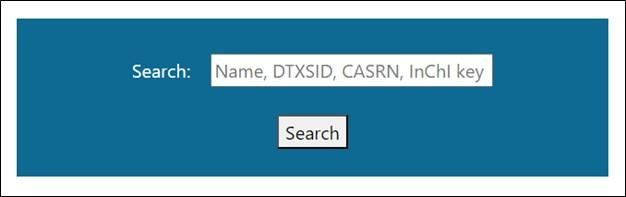
Pressing the enter key or the search button will take you to a result page which displays all substances in the database whose name, CASRN, DTXSID, InChI key, or known aliases partially or wholly match your search term and all reactions containing those substances as either a parent or a product.
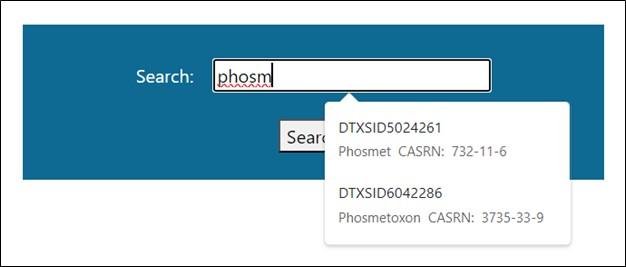
Typing three or more characters into the search bar will bring up a dropdown selection menu which includes any chemical whose name, CASRN, or DTXSID partially or wholly matches those characters.
Clicking on a dropdown element will take you to a result page which displays all reactions containing that substance as either a parent or product.
Chemical Database
There are two ways to view the chemical database. Clicking on the Table/Tile View button will switch between the two views.
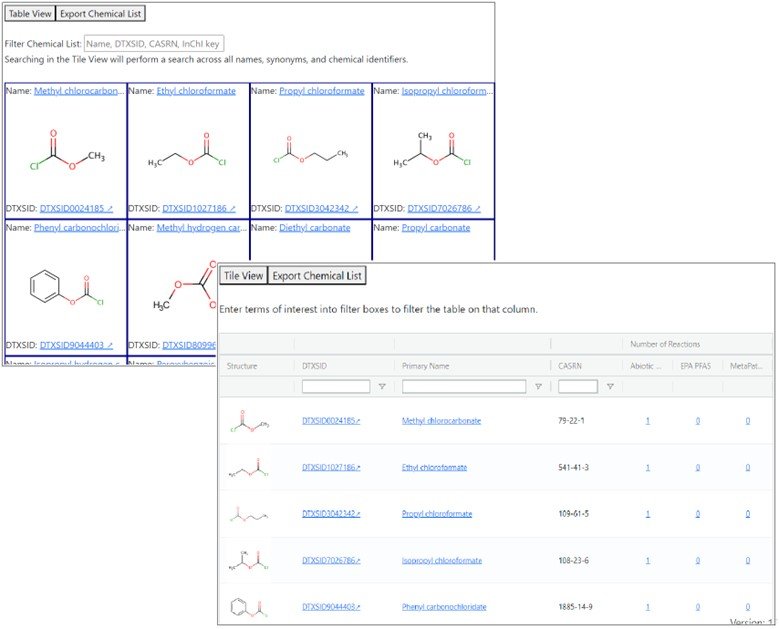
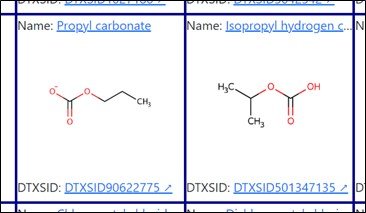
The Database page defaults to the tile view (image right).
Every chemical in the database will be displayed in its own tile. Each tile contains the name (truncated if it exceeds the width of the tile) and DTXSID of the substance as well as a structural image of the substance. Clicking on the name will take you to CheT's local database page for the substance. Clicking on the DTXSID will take you to the CompTox Chemical Dashboard page for the substance (links to pages outside of CheT are denoted with an upward arrow throughout the application).
Typing into the filter bar will cause the tiles below to be filtered by displaying substances whose name, Aliases, CASRN, or DTXSID partially or wholly match those characters.

Additionally, when three or more characters are typed into the filter bar a dropdown selection menu will pop up which can be used to filter for a single chemical.

On the Table View chemicals are organized into a table with columns for structural image, DTXSID, Primary Name, CASRN, and Numbers of Reactions. DTXSID, Name, and CASRN.

The table can be filtered using the filter bars below the column headers or sorted by clicking on a column header.

Clicking on a DTXSID will take you to the CompTox Chemical Dashboard page for the substance. Clicking on a name will take you to CheT's local database page for the substance. The sub-headers for the Number of Reactions header are the reaction libraries currently present in CheT. Clicking on the number in the column (if it is non-zero) will take you to a search results page displaying the reactions containing that chemical within that library.

The Export Chemical List button (image right) will prompt CheT to create a CSV file of the chemicals displayed on the page (including any filtering you have done) containing their name, DTXSID, SMILES string, InChI Key, and CASRN and prompt you to download the file.
Reaction Database
The reaction database page displays the reactions in the database in a tile layout.

Each tile contains the written-out reaction, images of parent and product chemicals, and the reaction specifications for the reaction (library, process, type, and scheme) if they are recorded. Clicking on the written-out reaction will take you to CheT's local database page for the reaction. Clicking on a chemical image will take you to CheT's local database page for the chemical. Clicking on a reaction specification will take you to a search results page containing all reactions sharing that specification (for example, clicking on the Abiotic Hydrolysis reaction library specification will take you to a search results page listing all reactions in the Abiotic Hydrolysis reaction library).

Typing into the search bar will cause the tiles below to be filtered by displaying reactions with a reaction library, process, type, or scheme which matches the search term or with a parent or product chemical whose name or DTXSID matches the search term partially or wholly.
The Export Reaction Details button (image right) will prompt CheT to create a CSV file of the reactions displayed on the page (including any filtering you have done) containing reaction specifications (library, process, type, and scheme), parent and product names and DTXSIDs, and reaction details associated with the library containing that reaction and will prompt you to download the file.
Search Results
The search results page displays the chemicals and reactions resulting from the search in a tile layout.
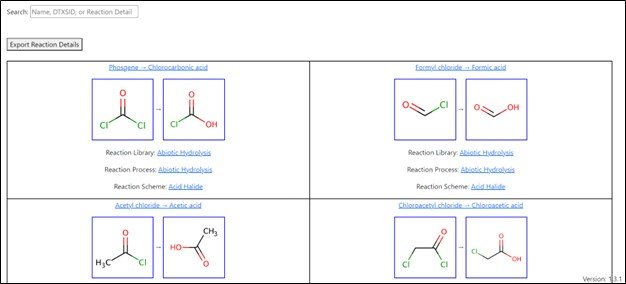
Each tile contains the written-out reaction, images of parent and product chemicals, and the reaction specifications for the reaction (library, process, type, and scheme) if they are recorded. If the batch search feature was used, the search term and resulting value will also be displayed.

Clicking on the written-out reaction will take you to CheT's local database page for the reaction. Clicking on a chemical image will take you to CheT's local database page for the chemical. Clicking on a reaction specification will take you to a search results page containing all reactions sharing that specification (for example, clicking on the Abiotic Hydrolysis reaction library specification will take you to a search results page listing all reactions in the Abiotic Hydrolysis reaction library).
Typing into the search bar will cause the tiles below to be filtered by displaying reactions with a reaction library, process, type, or scheme which matches the search term or with a parent or product chemical whose name or DTXSID matches the search term partially or wholly.
The Export Reaction Details button (image right) will prompt CheT to create a CSV file of the reactions displayed on the page (including any filtering you have done) containing reaction specifications (library, process, type, and scheme), parent and product names and DTXSIDs, and reaction details associated with the library containing that reaction and will prompt you to download the file.
Batch Search
To use the search feature on the batch search page, type or copy a list of chemical identifiers into the batch search box and then click on the search button.
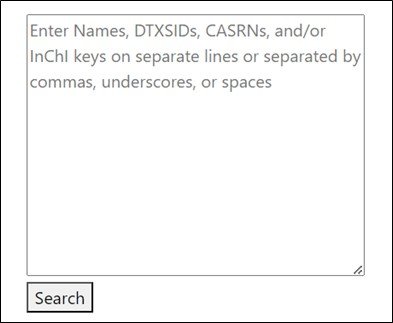
Valid identifiers include Names, DTXSIDs, CASRNs, InChI keys, and known synonyms. Search terms can be separated into different lines or with commas or spaces. Clicking on the search button will bring you to a search results page containing all substances and reactions identified with the entered search terms. Results will be identified with the term that yielded that result. If a result is found by multiple search terms it will appear as a separate result for each searched term, be aware of possible data duplication as a result.
Chemical Page
The Chemical Page displays the name of the chemical, a structural image of the chemical, the DTXSID, a button to show additional identifiers, a link to search methods and spectra, a link to show all reactions containing the chemical, a link to map reactions linked to the chemical, and a table of any pre-built reaction maps containing the chemical.
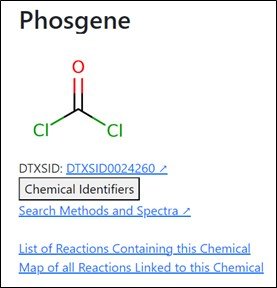
Clicking on the DTXSID will take you to the CompTox Chemical Dashboard page for the substance (links to pages outside of CheT are denoted with an upward arrow throughout the application).

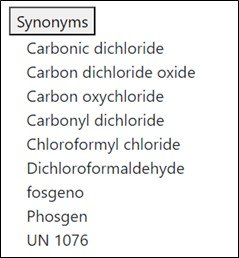
Clicking on the Chemical Identifiers button will display a SMILES string, CASRN, and InChI key for the chemical as well as the Synonyms button (image right).
Clicking on the synonyms button will display a list of known synonyms for the chemical.
Clicking on Search Methods and Spectra will take you to AMOS (the EPA Analytical Methods and Spectra Database).
Clicking on List of Reactions Containing this Chemical will take you to a search results page containing all reactions containing that chemical as either a parent or product.
Clicking on Map of All Reactions Linked to this Chemical will bring you to a reaction map page for the chemical in question showing its connectivity to other chemicals in the database.
Reaction Page
On a Reaction Page you will see the written-out reaction, images of the parent and product chemicals, the reaction specifications (library, process, type, and scheme) if present in the database, a list of maps containing the reaction (if any are present in the database), a table of reaction details, and a button to export the reaction details.
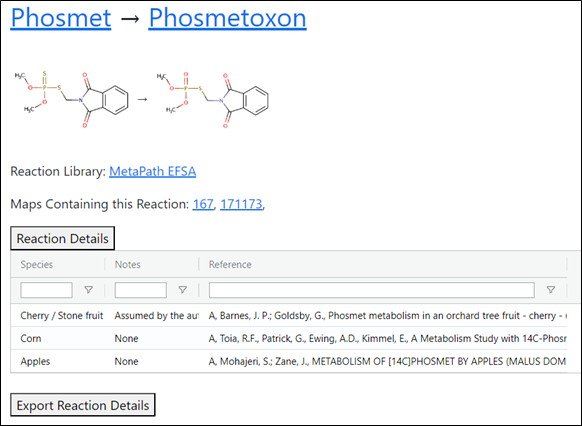
Clicking on the name of a parent or product chemical will take you to CheT's local database page for the substance. Clicking on a reaction specification will take you to a search results page containing all reactions sharing that specification.
The reaction details table will have different fields depending on the reaction library it is associated with. Variables recorded in the reaction library will be presented in the table. Additionally, the reference for the reaction will be presented in the table. Where a DOI is available for the reference, clicking on the reference will take you to it.
Clicking the Export Reaction Details button will cause CheT to create a CSV file of the reactions displayed in the table containing reaction specification (library, process, type, and scheme), parent and product names and DTXSIDs, and reaction details associated with the library containing the reaction and will prompt you to download the file.
Clicking on a MapID will take you to a reaction map page displaying the pre-built reaction map in question.
Reaction Map Page
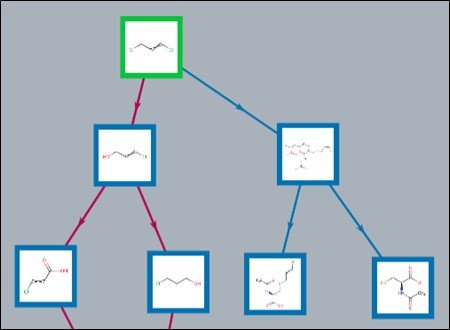
The reaction map page has three slightly different appearances that depend on what you are viewing a map of. The chemical view displays a map of all chemicals in the database connected by any number of reactions to the chemical of interest. The Single Map view displays a single reaction map as it is stored in the database. The Compare view displays two or three reaction maps from the database at once. Common to all three views are the Show All Chemicals and Hide All Chemicals buttons, the Search bar and buttons, the Export Visible Map button, and the map area.
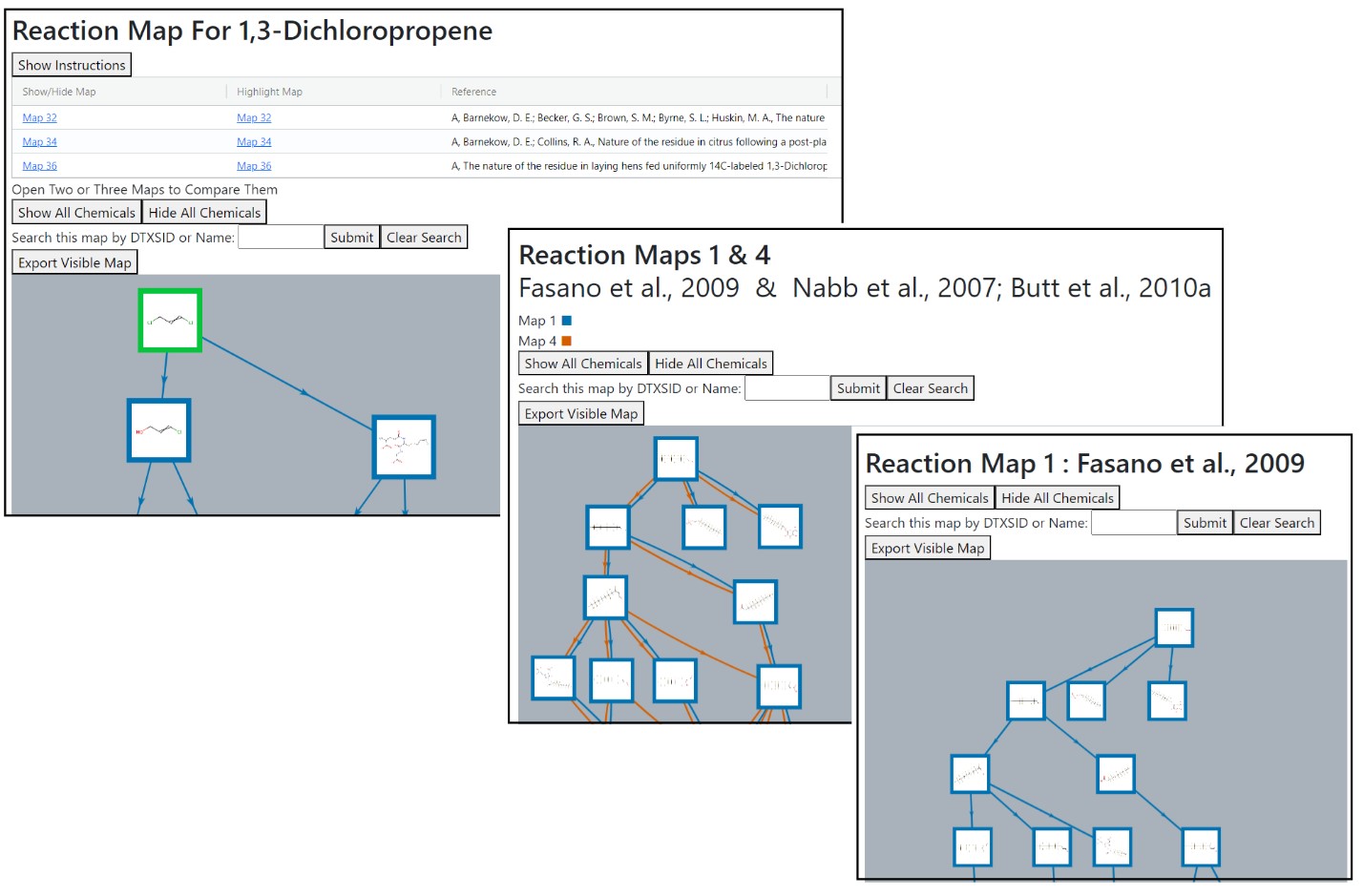
The chemical view will display the name of the chemical on the top of the page, a Show Instructions button (which reiterates the information here about the map area), and a table of maps from the database that are visible in the map area.
The Single Map view will display the Map ID number and source.
The Compare view will display the ID numbers and sources of the two maps as well as a color key for the maps. On the compare view, reactions will always be displayed in a color corresponding to the map they come from and if a reaction is present in multiple maps multiple lines will be shown for that reaction (one for each map the reaction is part of).
The map area will display the currently visible reaction map. Chemicals on the map will be highlighted to inform the user of their current status. On the Chemical View, the chemical of interest will be highlighted in green. For chemicals other than the chemical of interest the chemical will be highlighted in blue if it has been selected, in black if it is unselected and selecting it will not reveal more chemicals, and in red if it is unselected and selecting it will reveal more chemicals. To select a chemical, click on its image in the map area.
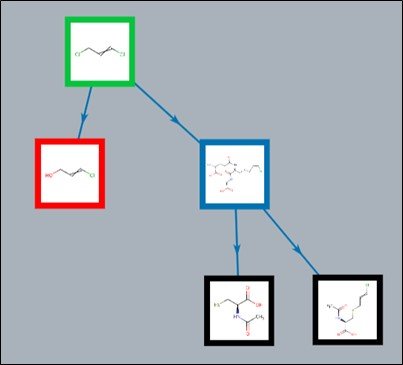

Hovering the cursor over the image of a chemical in the map area will cause a popup to display with a magnified image of the chemical, the chemical's name, and the chemical's DTXSID (image right).
Reactions are shown in the map area as lines between chemicals. The arrows on the lines point from parent chemical to product chemical. Reactions with multiple parent and product chemicals are shown as multiple reactions in the map area. Reactions are drawn in gray if neither the parent nor the product are marked, in orange if only the product is marked, and in blue if the parent is marked (regardless of whether the product is marked).

Clicking the Show All Chemicals button will reveal and select every chemical in the map. Clicking hide all chemicals will un-select and hide every chemical in the map except the chemical of interest (on the single map and compare views the first chemical added to the database will instead not be hidden).
Typing a name or DTXSID into the search bar and pressing search will search the map and highlight in yellow any visible chemicals whose name or DTXSID partially or wholly match the search term (this will override any other coloring for those chemicals).

Hidden chemicals that match the search term will not be revealed but if they are later revealed they will be highlighted. Typing a new search term and clicking submit will overwrite the previous search, unhighlighting chemicals that do not match the new search term. Clicking the Clear Search button will clear the search term, unhighlighting all chemicals.
Clicking the Export Visible Map button (image right) will prompt CheT to create a CSV file of the reactions displayed in the map area containing reaction specification (library, process, type, and scheme), parent and product names and DTXSIDs, and reaction details associated with the library containing the reaction and will prompt you to download the file. The button will only export reactions with a marked parent or product. In order to export all reactions in the map area, use the show all chemicals button prior to using the export button.
The map table of the chemical view has references for each of the maps visible in the chemical area.

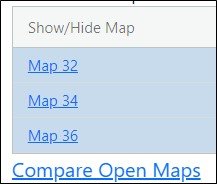
Clicking on the show map column in the table will reveal and mark every chemical in the map area that is part of that map. Clicking on the highlight map column will highlight every reaction in the map area that is part of that map in purple.
Clicking on compare maps when two or more maps are shown will redirect you to the comparison view.
About
The about page contains a statement of purpose explaining the motivation behind CheT and a disclaimer relating to the curation and policies behind CheT.
Submit Comments
The Submit Comments page allows users to submit comments, complaints, and but reports relating to CheT. The Page field is used to communicate to the team where the problem motivating the comment was found. It will be populated by default with the page from which the user navigated but can be changed by the user. The Report field is used to communicate a brief description of the problem or comment. The contact email field is used to leave an email where the reporting user can be reached for follow-up if more information is needed in the course of fixing an error.
Contact Us
The contact us page contains email addresses to contact the team behind CheT. Clicking on an address will open up a new email using the default email client for the user.